
Data-driven testing
Data-driven testing runs one test case against multiple sets of input and expected values, so you don’t repeat the test by hand for each data set. For example, a form test recorded with one set of values may pass, while other values would trigger errors. Data-driven runs find those cases.
CloudQA offers four approaches:
- A CSV file, with the variable approach or the input fields approach
- Random variables
- A test suite
- An environment-level data file
- CloudQA runs the first test case using the number of rows entered, then moves to the next test case.
- You can use a maximum of 20 rows of data.
Use a CSV file
Section titled “Use a CSV file”Variable approach
Section titled “Variable approach”Use this when only some input fields need different data, for example an email ID and a last name.
-
In Edit Steps, select the input field and name it
__variable name__, with double underscores on each side.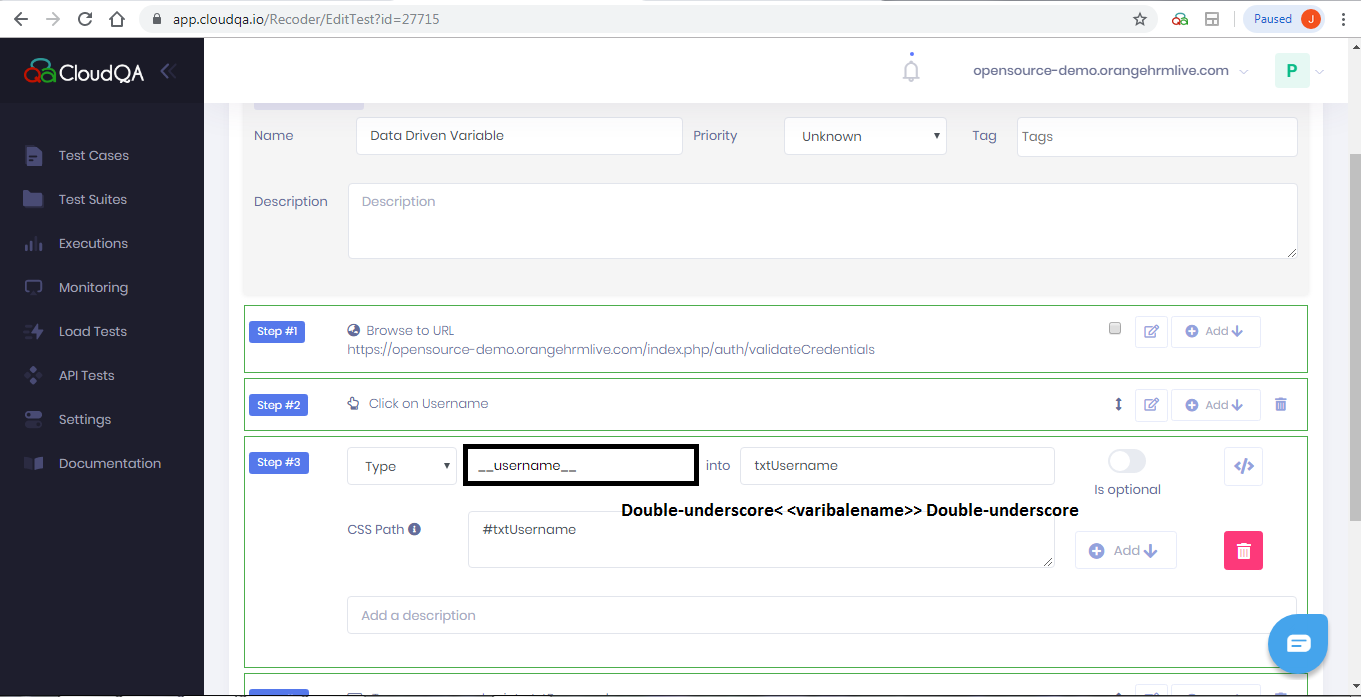
-
In the Actions column of the test case, select Custom Execute.
-
Select Use a CSV file for Data Driven testing, then select As variables.
-
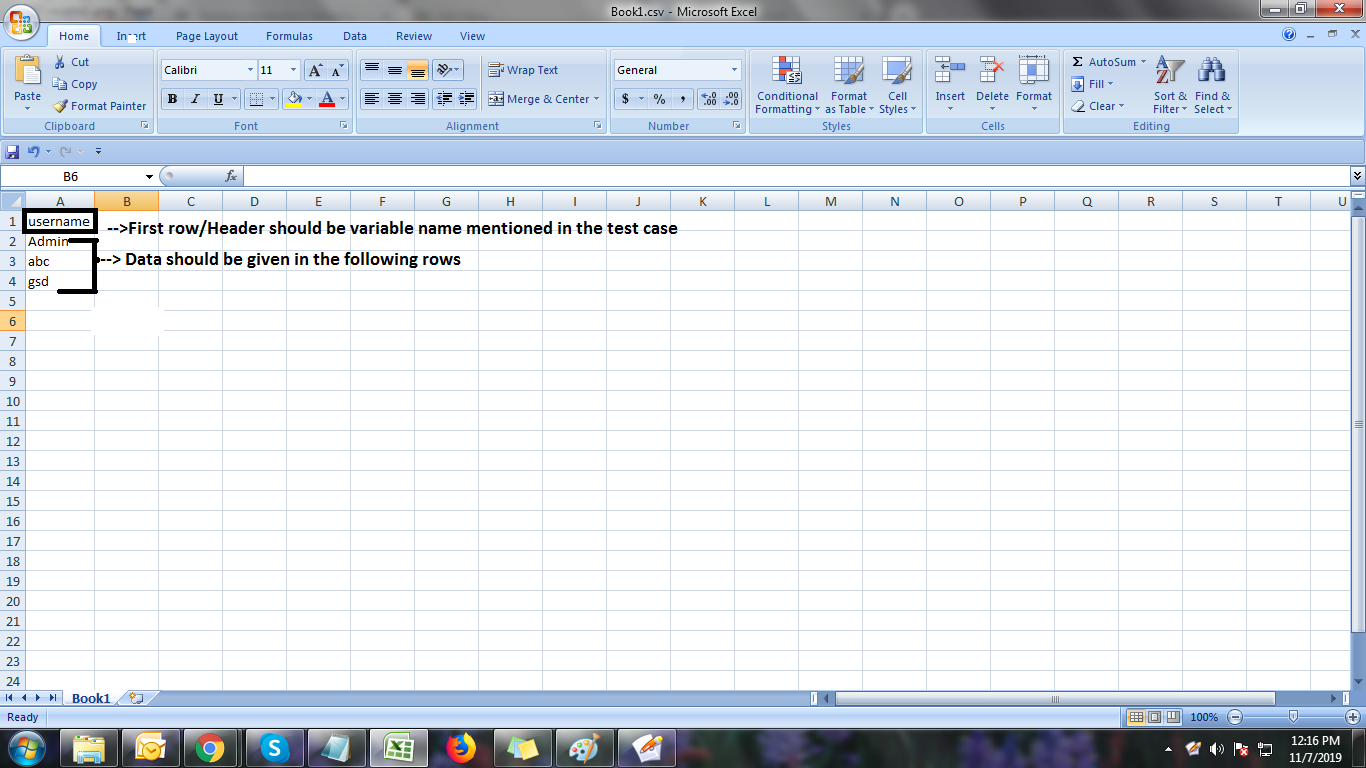
Upload a CSV file. The header row contains the variable names used in the test, followed by rows of data.
-
Select Execute.
Input fields approach
Section titled “Input fields approach”Use this when every input field in the test, for example in a “create customer” test, should be tested with different data.
- In the Actions column of the test case, select Custom Execute.
- Select Use a CSV file for Data Driven testing, then select As input fields.
- Download the file template, enter your data and save it.
- Choose the file and execute the test.
Use random variables
Section titled “Use random variables”Random variables supply new values on every run without a data file. See Random variables.
Data-driven test suites
Section titled “Data-driven test suites”Run a whole suite, or all of its test cases, with different data. You don’t need to turn the setting on for each test case.
-
In Edit Steps for the test cases, name the input fields
__variable name__, as in the variable approach above. -
Open the Test Suites tab and create a test suite.
-
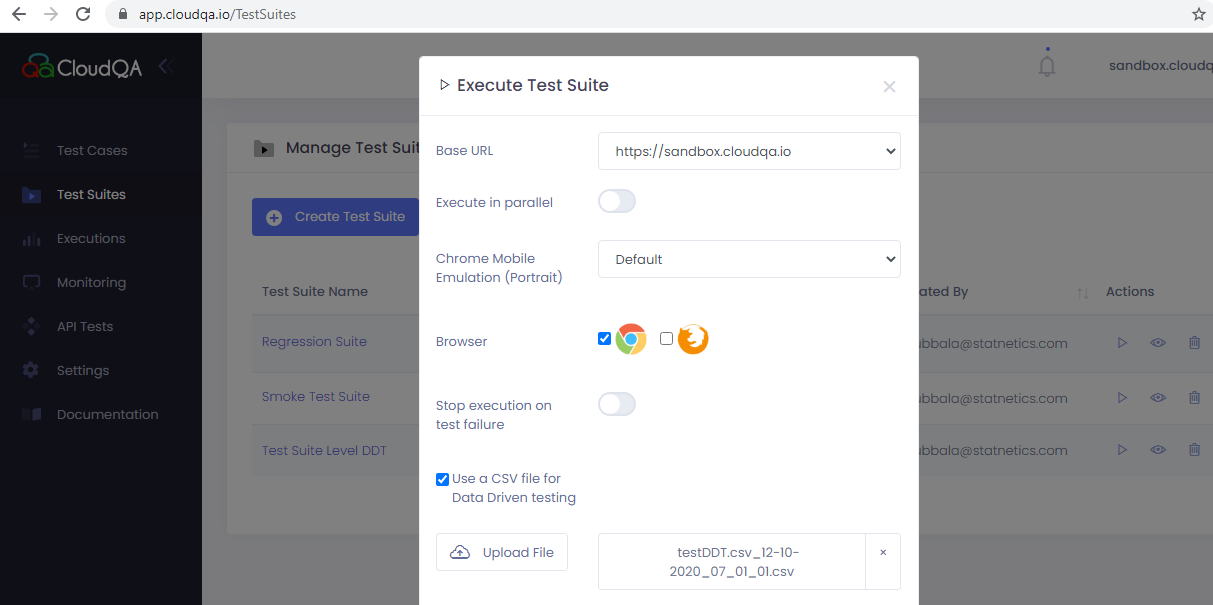
In the Actions column of the suite, select the play button, then select Use a CSV file for Data Driven testing.
-
Upload a CSV file whose header row matches the variable names, followed by data rows.
-
Select Execute.
Data-driven tests per environment
Section titled “Data-driven tests per environment”Use this when an application has several environments and each needs its own data file.
Set up the data file
Section titled “Set up the data file”- Replace step values in your test cases with variables, for example
__username__for a username. - Make sure the variables match the headers in your CSV file.
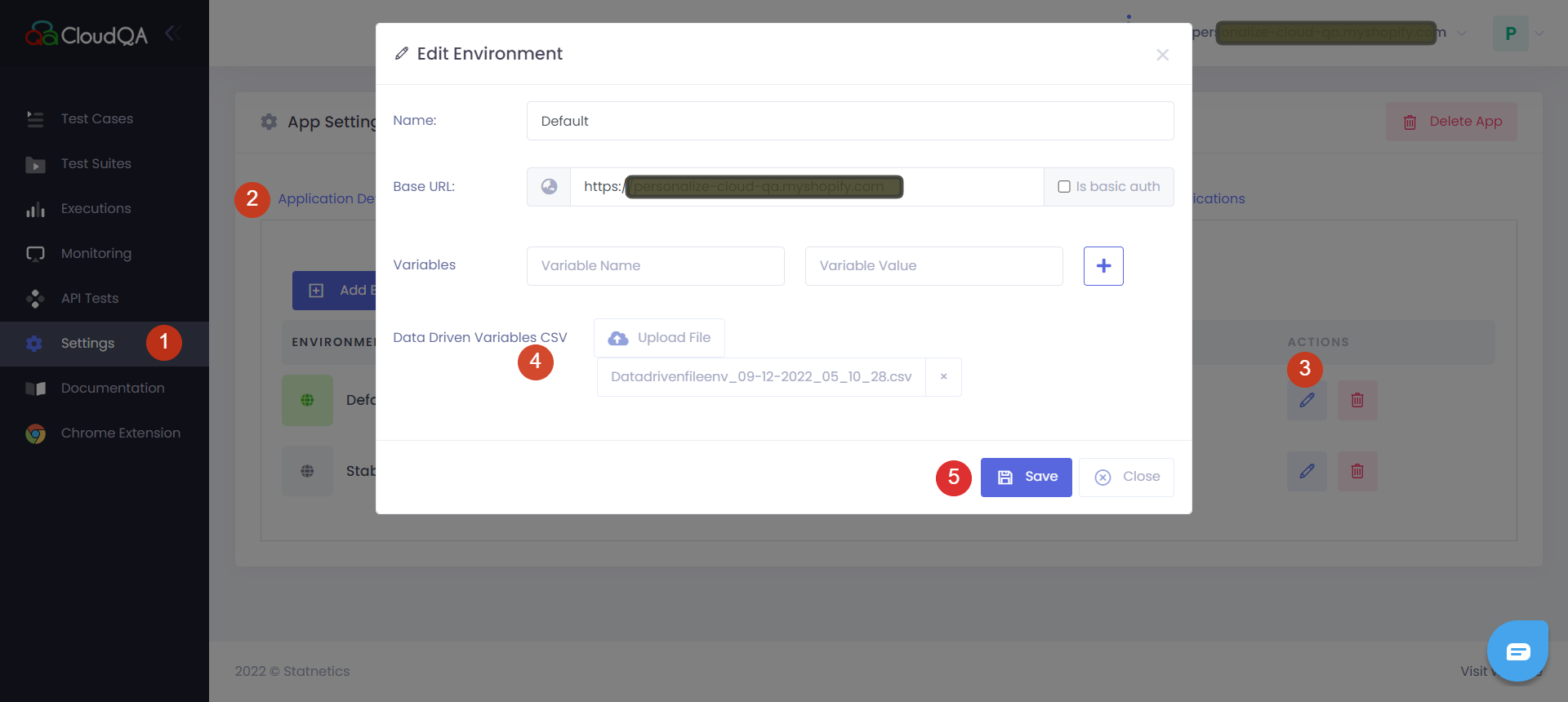
- Open application Settings, then Environments.
- Select Edit on an environment, upload the CSV file (header row with variable names, followed by data rows) and select Save.
Run a test case
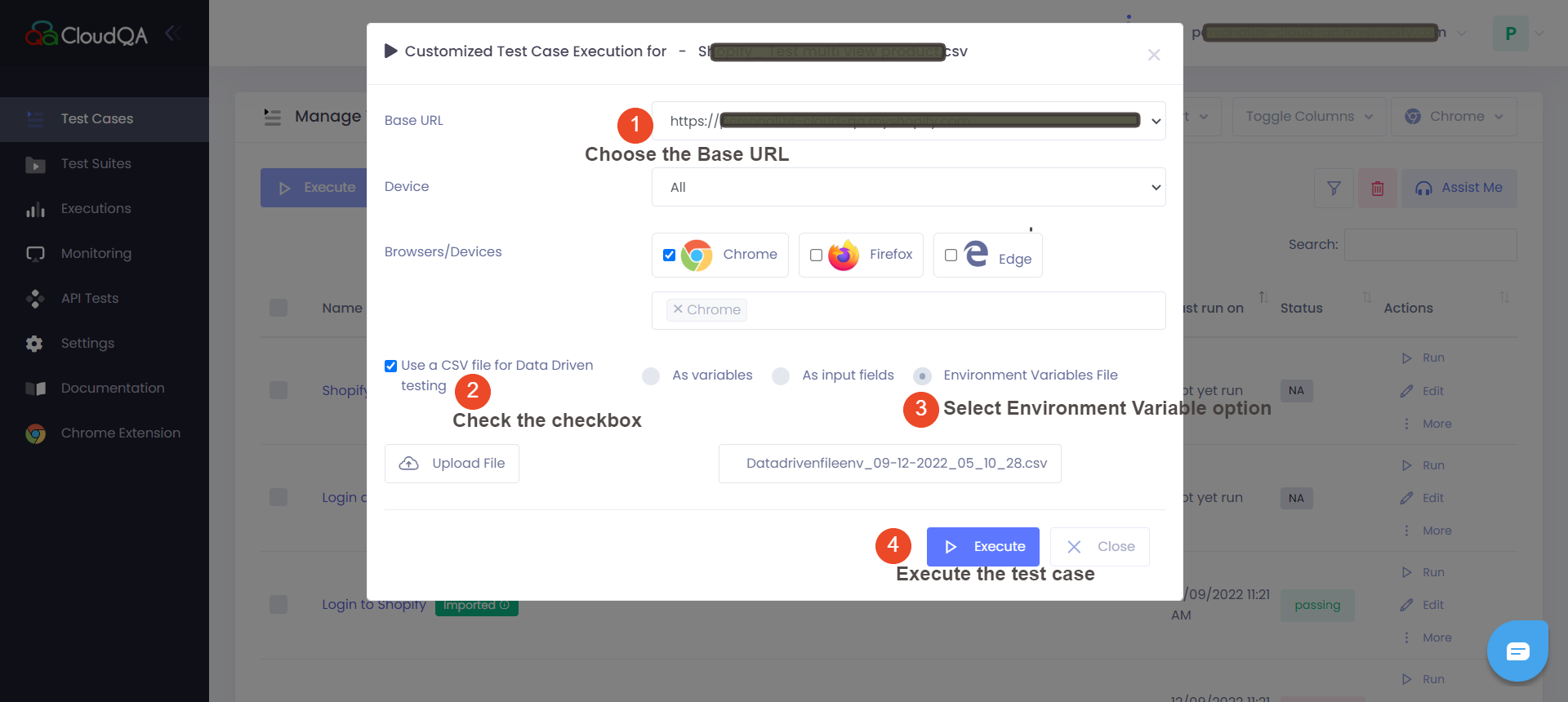
Section titled “Run a test case”- On the Test Case page, select Custom Execute in the Actions column.
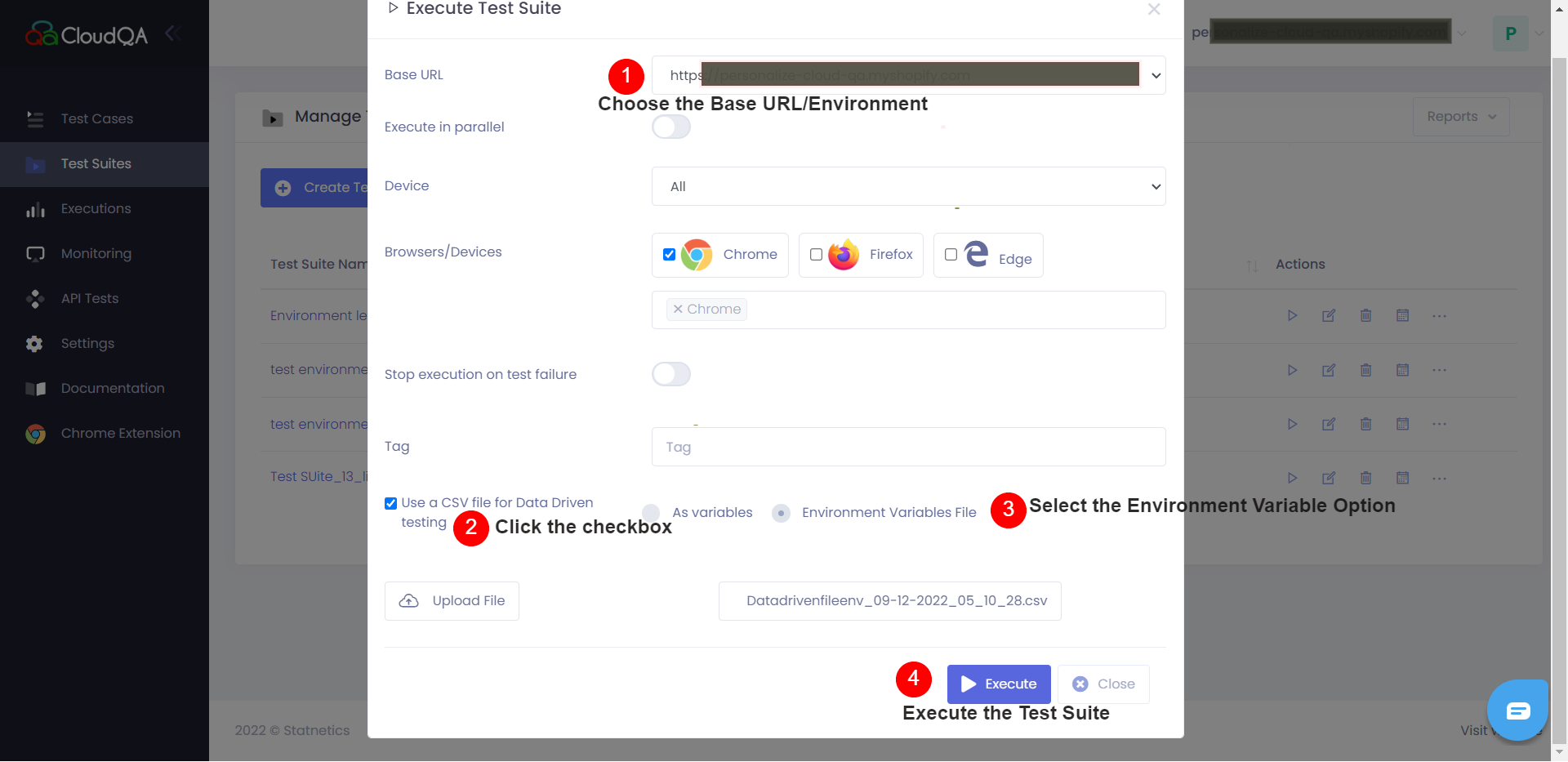
- Choose the Environment/Base URL.
- Select Use a CSV file for Data Driven testing.
- If the file was uploaded at the environment level, the Environment Variables File option appears. Select it.
- Execute the test case.
Run a test suite
Section titled “Run a test suite”- Open the Test Suites tab and create a suite.
- Select the play button in the Actions column.
- Choose the Base URL, select Use a CSV file for Data Driven testing, then select the Environment Variables File option.
- Execute the suite.