

Edit steps
Editing a test case lets you manage every step: add new ones, change existing ones and remove those you don’t need.
Add a step
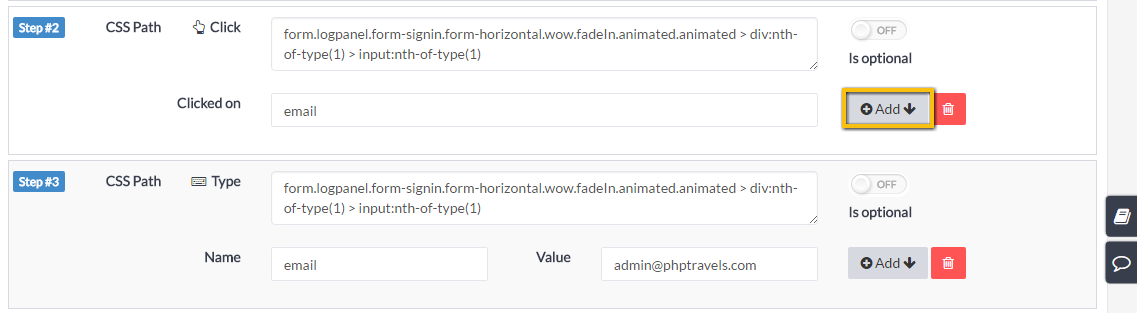
Section titled “Add a step”- Open Edit Steps for the test case and select Add on any step. The new step is inserted directly below it.
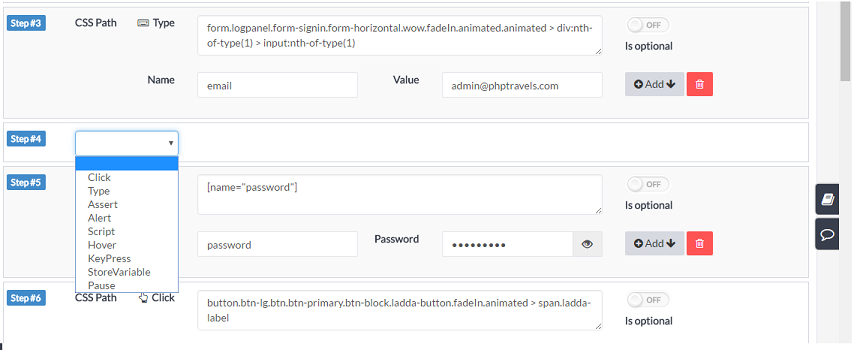
- Choose an action from the dropdown. Available actions include clicking an element, making an assertion, running a custom script and accepting or rejecting a JavaScript alert.
- For steps that act on an element, such as clicking a button, enter the element’s CSS selector in the CSS path field at the top of the step.
The Chrome extension includes Pick CSS, which captures the selector for the element you point at.

Step types
Section titled “Step types”| Step | What it does |
|---|---|
| Click, Hover | Click a button or other element, or move the pointer over it. |
| DoubleClick, RightClick | Double-click or right-click an element. |
| Click by text | Click an element by its visible text. Use the index option when several elements share the same text. |
| Type, Password | Enter a value in a text field, or a password. |
| Clear | Empty a text field. |
| Keypress | Send a key such as Enter or Escape. |
| Assert | Validate the page. See Assertions. |
| Alert | Accept or dismiss a JavaScript alert. Alerts aren’t always captured while recording, so you can add this step yourself. |
| Script | Run custom JavaScript, for example to build a custom date string with JavaScript date functions. |
| Pause | Wait for a fixed time, for a JavaScript condition to be true, or for an element to appear or disappear. |
| Take Screenshot | Capture the page at this point. |
| SwitchToWindow, Close Window | Move between browser tabs and windows, or close one. |
| Import Steps From | Reuse the steps of another test case. See Import test cases. |
| Import API Test | Run a saved API test as a step. |
| Validate PDF | Check the content of a downloaded PDF. Place it right after the click that starts the download. |
| Store Variable | Save a value for later steps. See Store variable. |
Optional steps
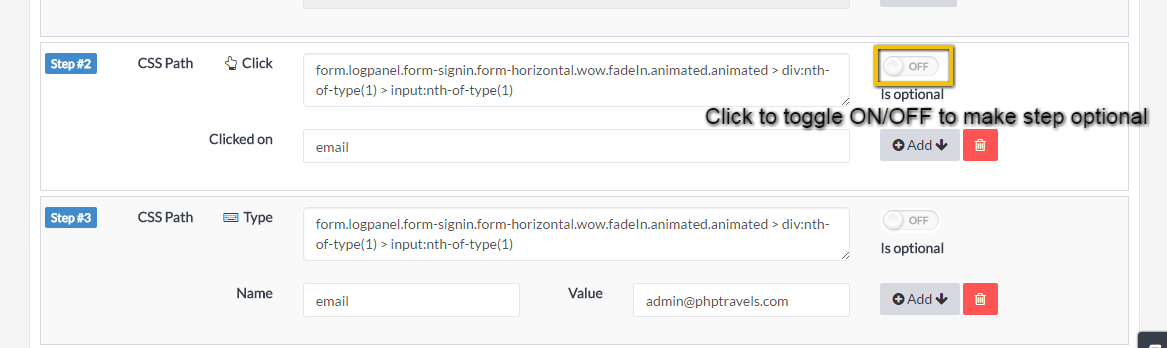
Section titled “Optional steps”Mark a step as optional and the test continues even if that step fails. This suits behavior that happens only sometimes, such as a modal dialog that appears intermittently. Use the toggle on the step to turn it on or off.
Conditional steps
Section titled “Conditional steps”A step can run only when a JavaScript condition is true.
- If the condition is true, the step runs.
- If the condition is false, the step is skipped.
- If the condition throws an error, the test fails at that step.
Code view (beta)
Section titled “Code view (beta)”Code view lets you edit steps as YAML. It supports bulk copy and paste, moving steps between tests, undo and redo, and importing or exporting tests between applications.
The YAML keywords are name, type, assertType, selector, iframeSelector, value, javascriptCondition and optional.
Related pages
Section titled “Related pages”- Add steps to an existing test
- Parameterize URLs with the override URL option
- Embedded editors