

Bug Snap
Bug Snap lets you capture and report bugs with little effort. You take a screenshot with the CloudQA Chrome extension, add details, and CloudQA stores everything in the Bug Snap section so you can track and manage reports.
What you get
Section titled “What you get”- Capture screenshots from the Chrome extension, or after recording the actions that reproduce the bug.
- Report effortlessly. Annotate the screenshot and add details so developers have clear information.
- Keep everything in one place. All reports are saved in the Bug Snap section.
Capture a screenshot
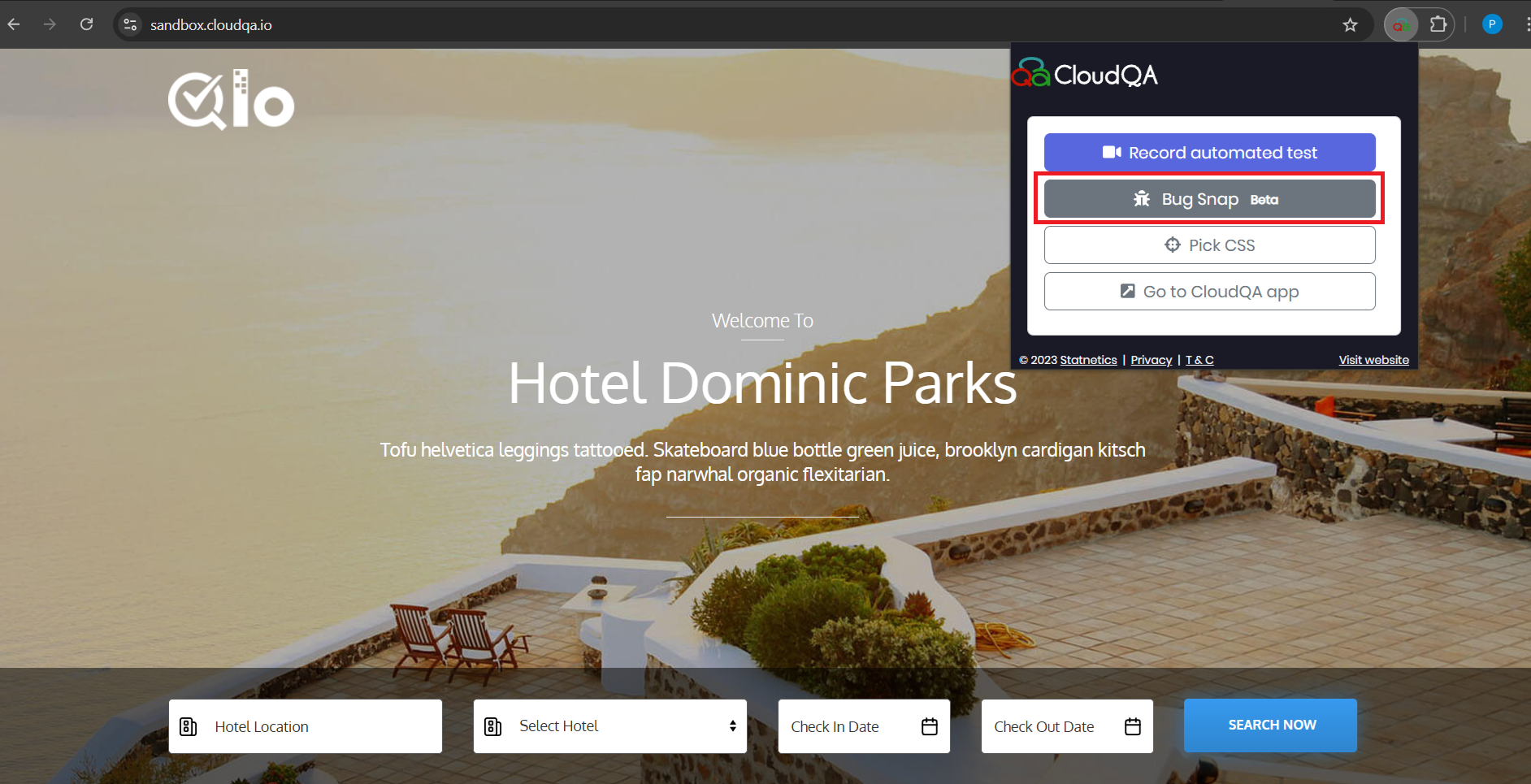
Section titled “Capture a screenshot”- Go to the page where the bug occurs.
- Open the CloudQA Chrome extension.
- Select Bug Snap, or press Alt + B.
- The screenshot appears in a preview window.
- Use the annotation tools to highlight or mark the problem.
Capture a screenshot after recording steps
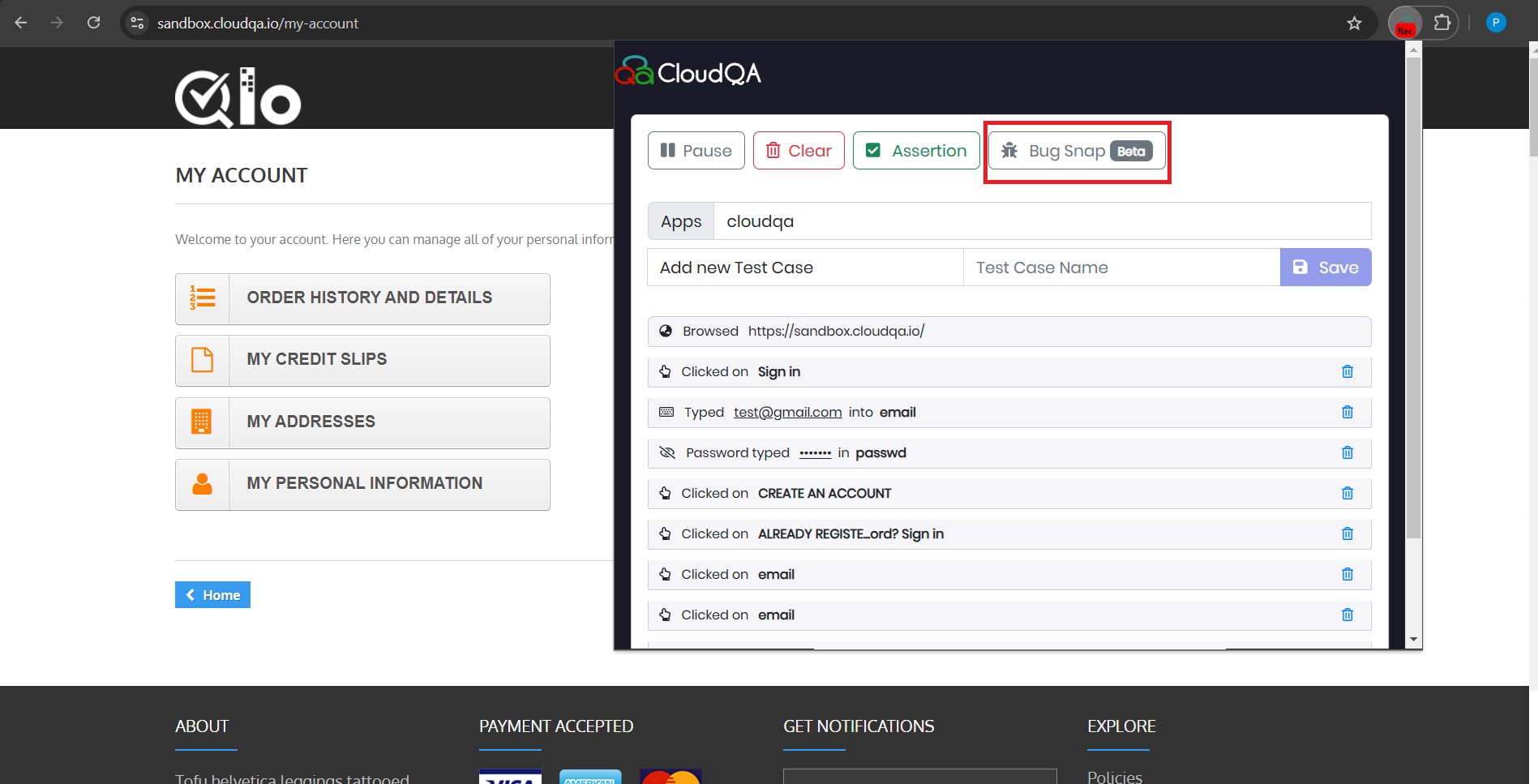
Section titled “Capture a screenshot after recording steps”- Start recording with the CloudQA Chrome extension.
- Repeat the steps that lead to the bug.
- Pause or stop recording when the issue occurs.
- Select Bug Snap in the recorder, or press Alt + B.
- Mark the issue on the screenshot with the annotation tools.
Add bug details
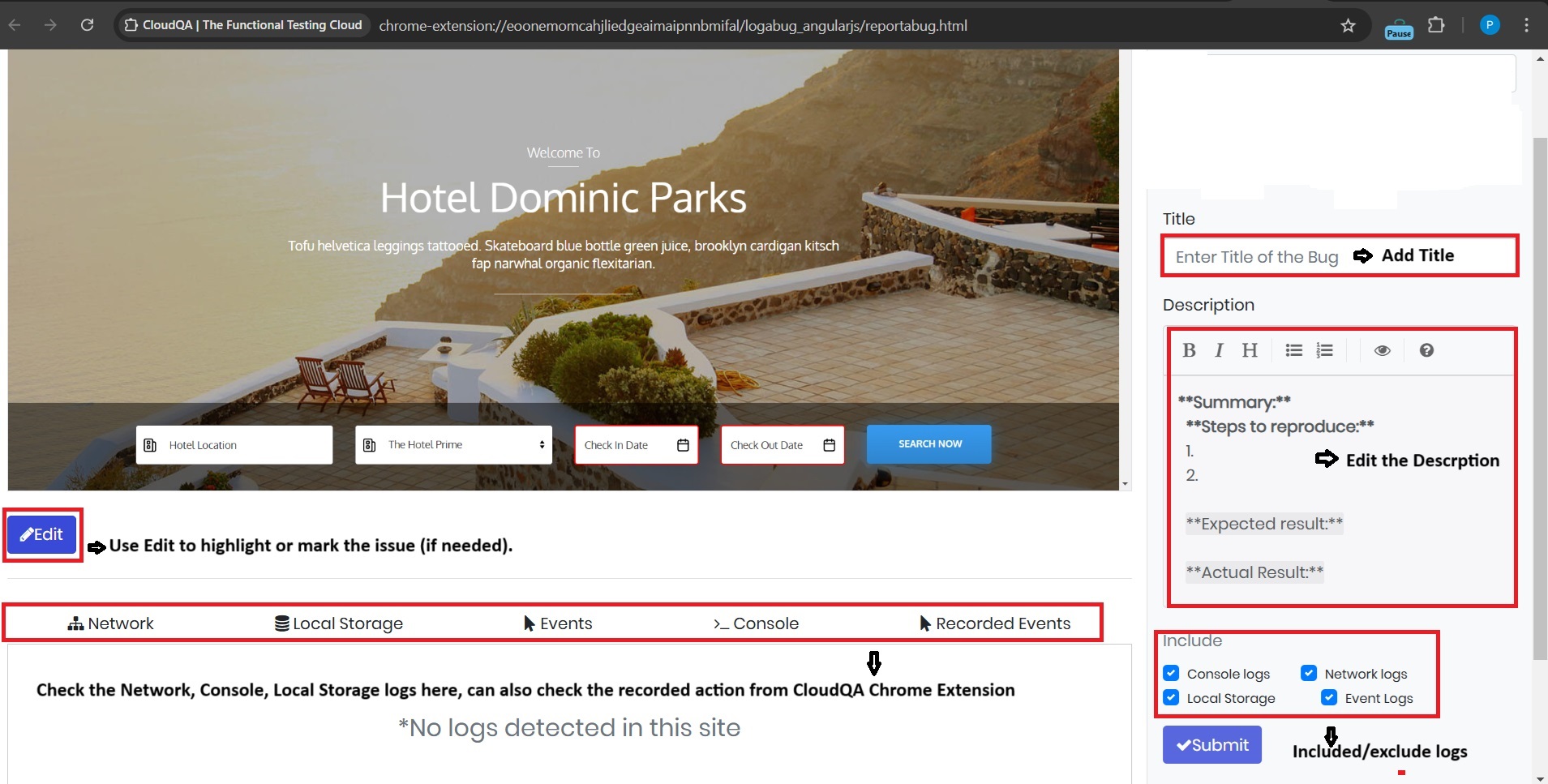
Section titled “Add bug details”After you capture a screenshot, CloudQA asks for:
- Bug title: a short title that describes the bug.
- Description: a detailed description of the issue.
- Events captured by CloudQA:
- Recorded events: the steps leading up to the bug.
- Network requests: a log of requests made during the session.
- Console logs: browser console output, for errors and warnings.
- Local storage data: key-value pairs in the browser’s local storage.
Use the checkboxes to include or exclude debugging data, then select Submit.
Manage your bugs
Section titled “Manage your bugs”Open Bug Snap in the left navigation of the CloudQA app to see every saved report with its screenshot and details.
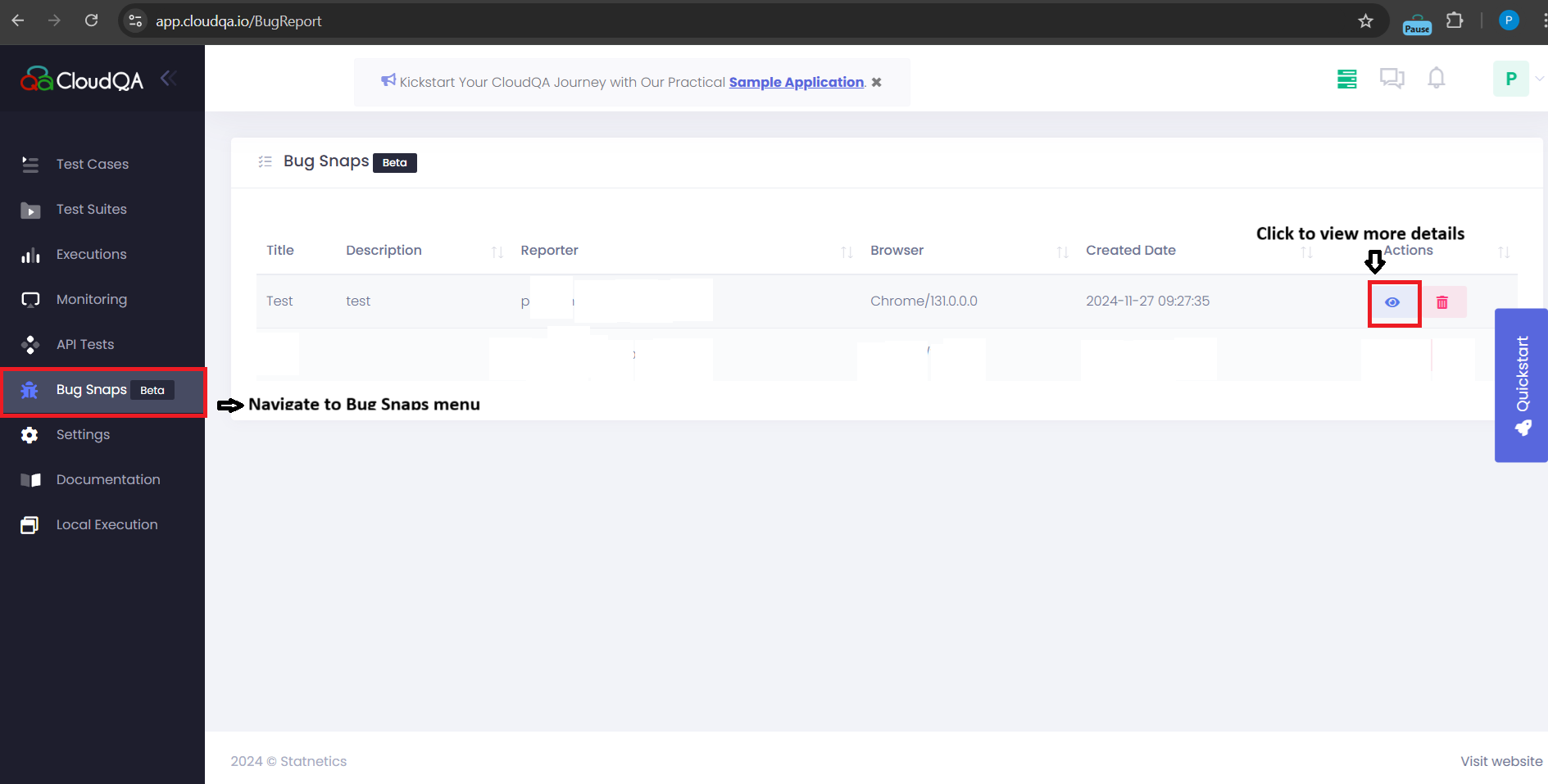
To share a report, open its details and select Copy in the upper-right corner. Then paste the screenshot and details into Jira, Slack or email.
Take the guided tour for an interactive walkthrough.