
Read test results
When a test runs, CloudQA records the status of every step (passed or failed), the error message for a failed step and how long each step took. You need to have run at least one test case first.
Open the results
Section titled “Open the results”Go to Run History to see results for all test cases, or select a test case to see its own runs. Each result shows the browser that was used, in green for a pass and red for a failure. Hover over a failure for an explanation of what went wrong.
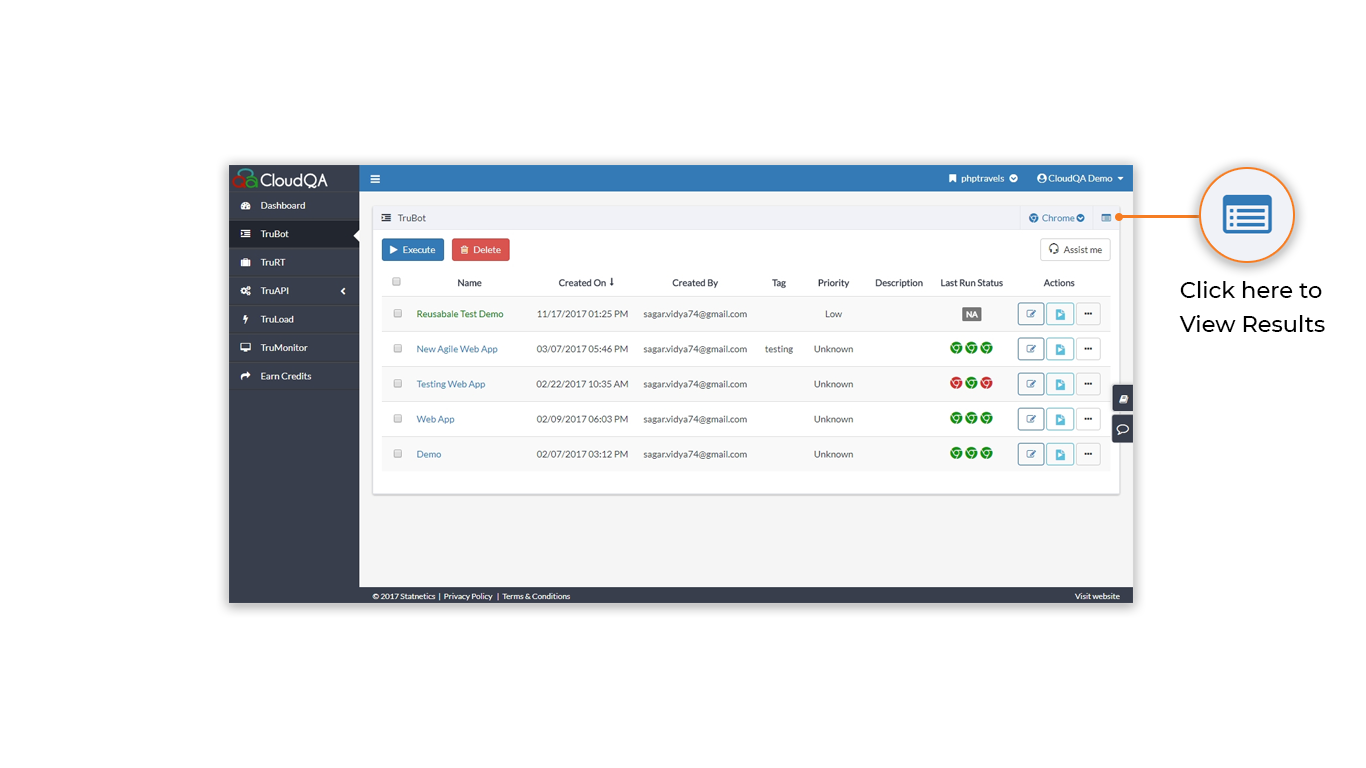
Select a status to open the results in one of two views.
Detailed view
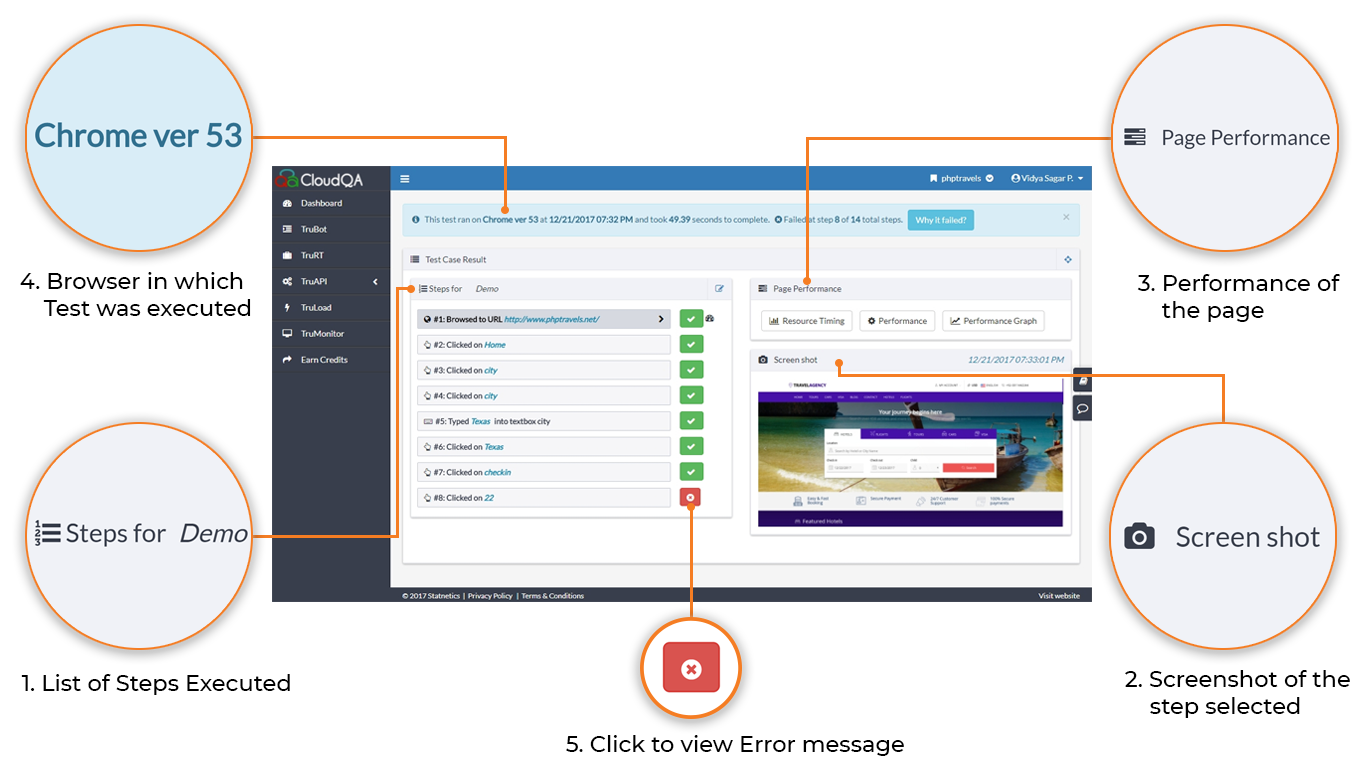
Section titled “Detailed view”The detailed view lists the steps that ran, and shows:
- A screenshot for every step, with a timestamp. Select a screenshot to enlarge it.
- The error message at the step where the test failed.
- Resource timing for the page, a graph of waiting, request and response times.
- Performance data when the URL changes: page load times split into server, network, client and full load time.
- The browser used and how long the run took.
Grid view
Section titled “Grid view”The grid view gives a visual timeline of how your application’s state changed during the run. Select any screenshot to zoom in. From here you can share results or retest the test case for other users.
Compare with a passing run
Section titled “Compare with a passing run”You can compare a failing step’s screenshot with a passing one, from the result page or from the execution history.
Download results
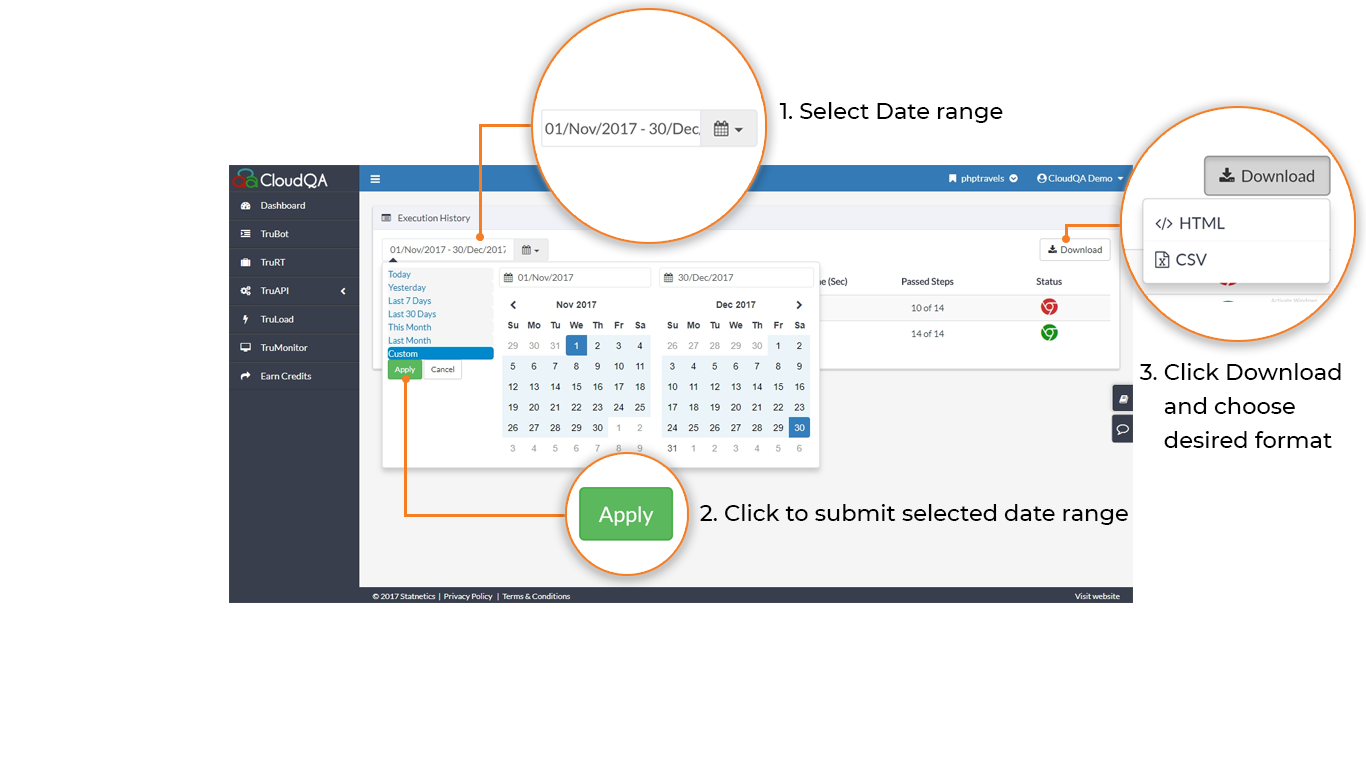
Section titled “Download results”On the Run History page, choose a predefined or custom date range to see results for that period. Download the report in CSV or HTML format.