

BrowserStack
Run the tests you create with CloudQA on BrowserStack browsers and devices.
1. Get your BrowserStack credentials
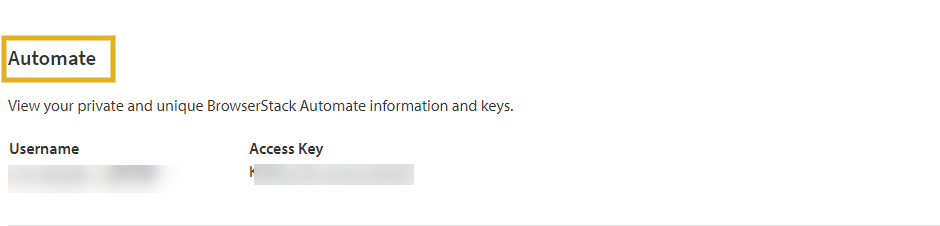
Section titled “1. Get your BrowserStack credentials”Log in to BrowserStack and open your account settings. On the Automate tab, copy your username and access key.
2. Connect BrowserStack in CloudQA
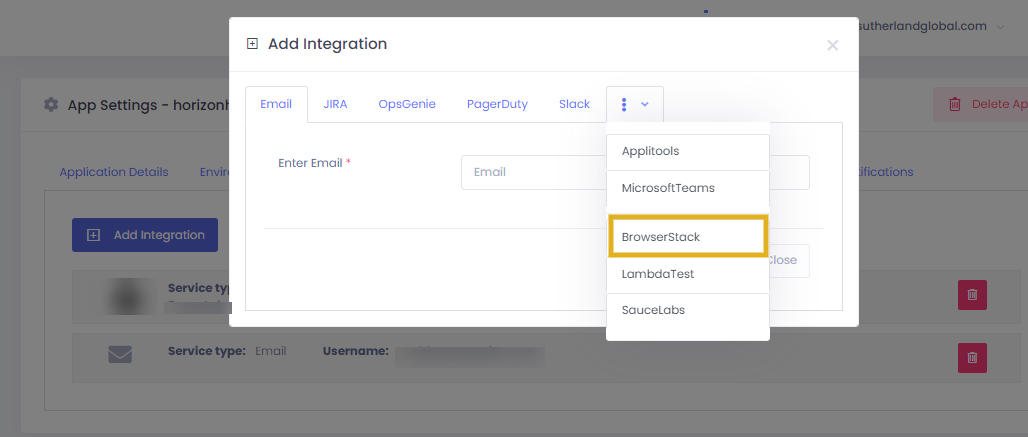
Section titled “2. Connect BrowserStack in CloudQA”- Open Settings and go to the Integration tab.
- Select Add Integration and choose Browser Stack.
- Enter the username and access key, then save.
3. Run tests on BrowserStack
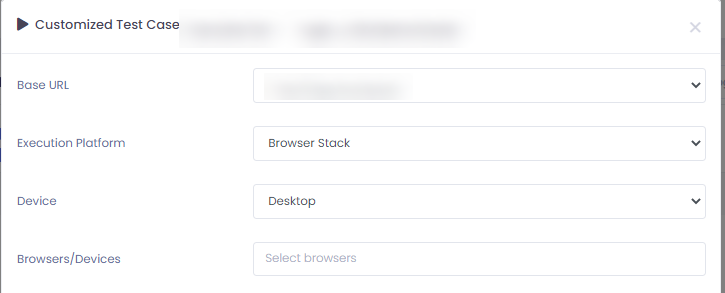
Section titled “3. Run tests on BrowserStack”- Open the Test Cases or Test Suites tab and select the run or scheduler option next to the test case or suite.
- Set Execution Platform to BrowserStack.
- Choose the devices and browsers you need.
- Select Execute.
4. View results
Section titled “4. View results”Results appear in the Executions tab, on the test case summary page and on the test suite summary page. Select the name of a test case or suite to open its execution summary, then select a result’s status to see its details.