

Quick start
Tests run in the CloudQA cloud, so you don’t need to set up any infrastructure. This page takes you from a new account to a recorder that is ready to use.
1. Create an account
Section titled “1. Create an account”- Register for a CloudQA account.
- Confirm your email address.
- Log in with your credentials.
2. Install the Chrome extension
Section titled “2. Install the Chrome extension”The extension records your actions on a website and sends them to CloudQA, which generates the test steps for you.
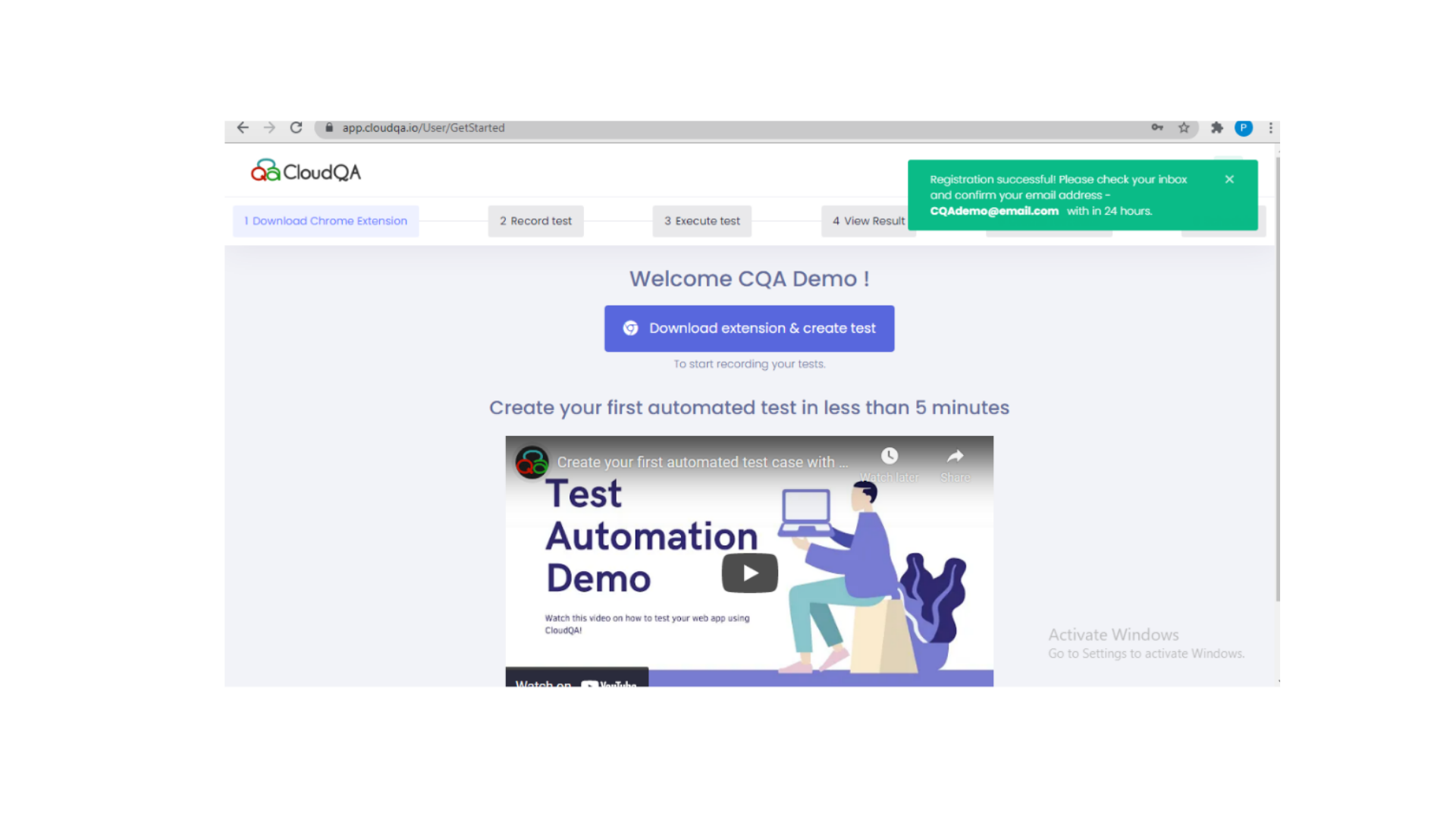
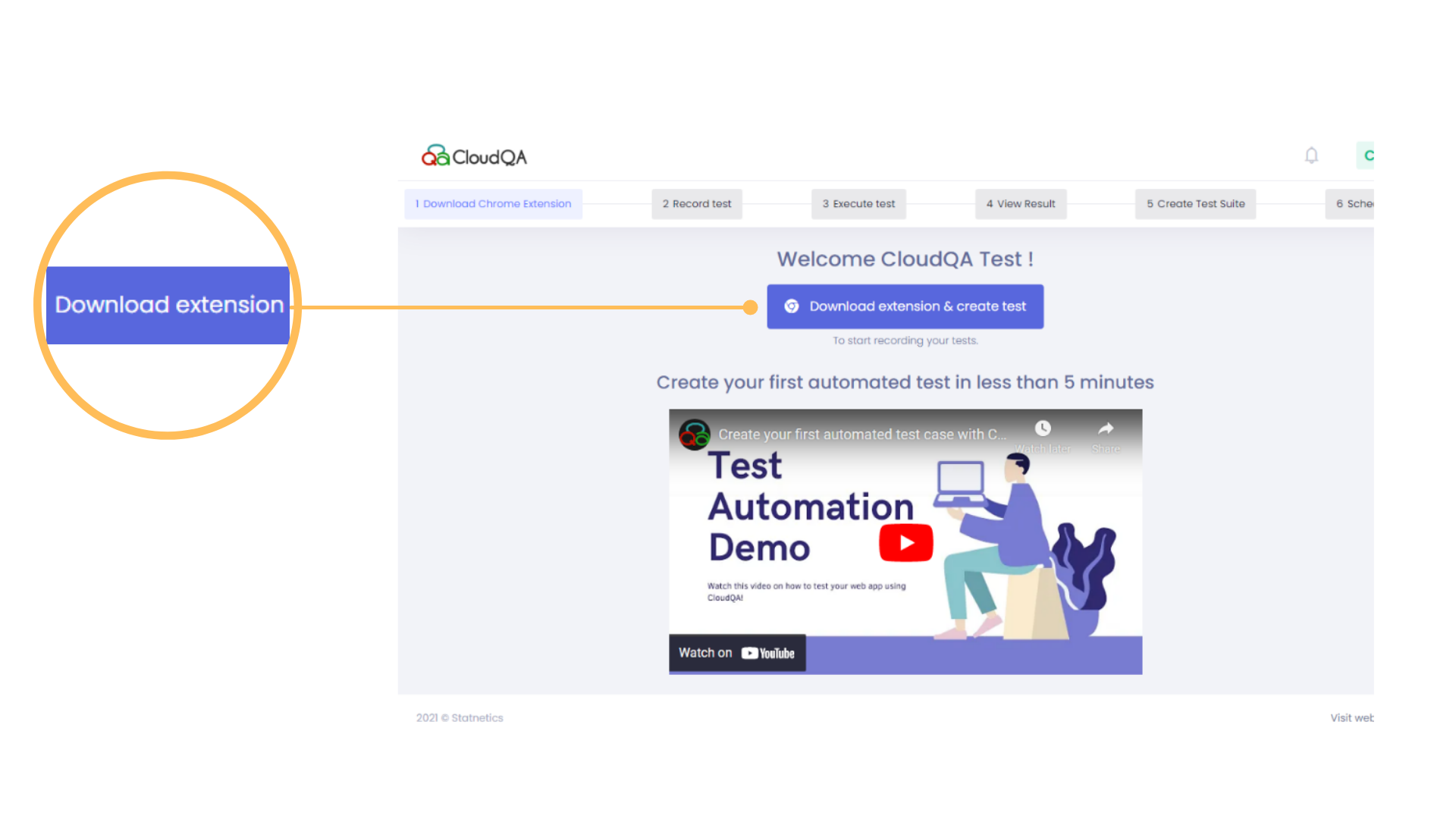
- After your first login, select Download Chrome Extension. You can also install it directly from the Chrome Web Store.
- Once installed, the CloudQA icon appears in your browser toolbar.
- Select the icon and log in with your CloudQA account.
3. Add your application
Section titled “3. Add your application”CloudQA groups test cases by application, so you add your application before you build its tests.
- Open your application in Chrome and leave it running in the background.
- Open the CloudQA recorder from the toolbar and log in.
- Select Add New Application.
One click configures the application. You can now create test cases and group them into test suites.
Next steps
Section titled “Next steps”- Record your first test
- Run tests and review results
- Schedule tests to run continuously and get email notifications of the results