
Monitoring notifications
Monitoring notifications are a flexible, central alerting system that lets you focus on the metrics you care most about. They connect with team tools such as PagerDuty and Slack, so the right people hear about critical issues. You can set up two kinds of alert.
Functional alerts
Section titled “Functional alerts”A functional alert fires when a monitored test case fails because of an application problem or downtime.
- Open Settings and select the Notifications tab.
- Add a notification and choose a type: Email or Slack.
- Set the conditions:
- Priority: choose it based on the test case’s priority.
- Consecutive failure: set how many failures in a row trigger a notification.
- Enter the email usernames or the Slack channel name, pick from the autosuggest list and save.
- Autosuggest shows a value only if you have added the matching integration on the Integration tab.
- When you register, your email address and phone number are added to integrations by default.
- Email addresses in User management are added to integrations automatically.
- To add another email address or phone number, add it on the Integration tab.
Performance notifications
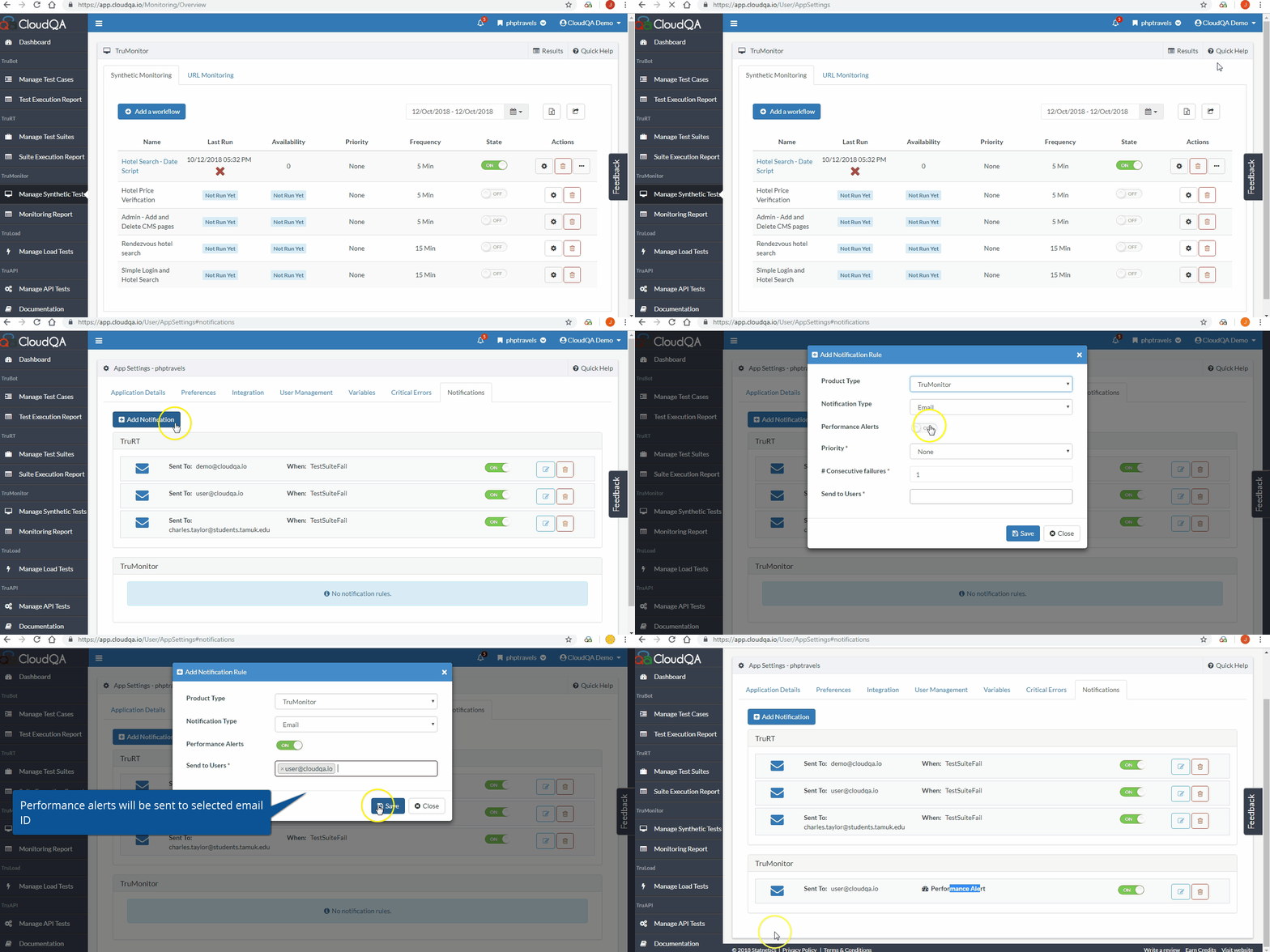
Section titled “Performance notifications”CloudQA captures performance metrics. Set a threshold value on a test case and CloudQA notifies you when any action in it goes over the threshold. Performance alerts tell you early when synthetic tests show your application missing performance standards.
- Add a threshold value to a test case.
- Open Settings, then the Notifications tab.
- Select Synthetic Monitoring and turn on Performance Alerts.
- Enter the email usernames, pick from the autosuggest list and save.
- You receive a summary report of the slow URLs.