

Run locally
Run Locally runs a test case in your own Chrome browser through the CloudQA Chrome extension. Nothing needs to be installed besides the extension.
Why run locally
Section titled “Why run locally”- Match your environment. The test runs against the same setup you use for development or production, so results are consistent.
- Iterate faster. There’s no cloud queue, so you see the result straight away.
- Debug with Chrome tools. Use Chrome DevTools and the debug pop-ups to find issues quickly.
- Reach local resources, such as internal APIs, databases or applications behind a VPN that the cloud can’t reach.
Set up the extension
Section titled “Set up the extension”1. Install the CloudQA Chrome extension
Section titled “1. Install the CloudQA Chrome extension”- Open the CloudQA extension in the Chrome Web Store.
- Select Add to Chrome and confirm.
- The CloudQA icon appears in the Chrome toolbar.
2. Log in
Section titled “2. Log in”- Select the CloudQA icon in the Chrome toolbar.
- Log in with your CloudQA credentials.
- Check that you can see the test cases you want to run.
3. Allow the extension in incognito mode
Section titled “3. Allow the extension in incognito mode”Local runs open in an incognito window by default, so the extension needs permission to run there.
- Open
chrome://extensionsin Chrome. - Find the CloudQA extension and select Details.
- Turn on Allow in Incognito.
4. Choose the window type and step delay
Section titled “4. Choose the window type and step delay”Right-click the CloudQA icon in the toolbar and select Options. The options page has two settings:
- Run in Incognito Window. When checked, tests always launch in an incognito window. When unchecked, they launch in a regular Chrome window.
- Time delay (milliseconds). The pause between steps. Increase it if steps run before the page is ready, for example because of a slow network, VPN, application or computer.
Which window to use:
- Incognito window. Starts a fresh session with no cached data, cookies or saved logins. Use it to test a login flow or how your application behaves for a new user.
- Regular window. Keeps your existing session data and cookies. Use it to test logged-in scenarios without signing in every time.
Run a test locally
Section titled “Run a test locally”You can start a local run from the extension or from the test case’s edit page.
From the extension
Section titled “From the extension”- Select the CloudQA icon in the toolbar and open the Test Cases tab.
- Browse or search for the test case.
- Select Run Locally.
From the Edit Steps page
Section titled “From the Edit Steps page”-
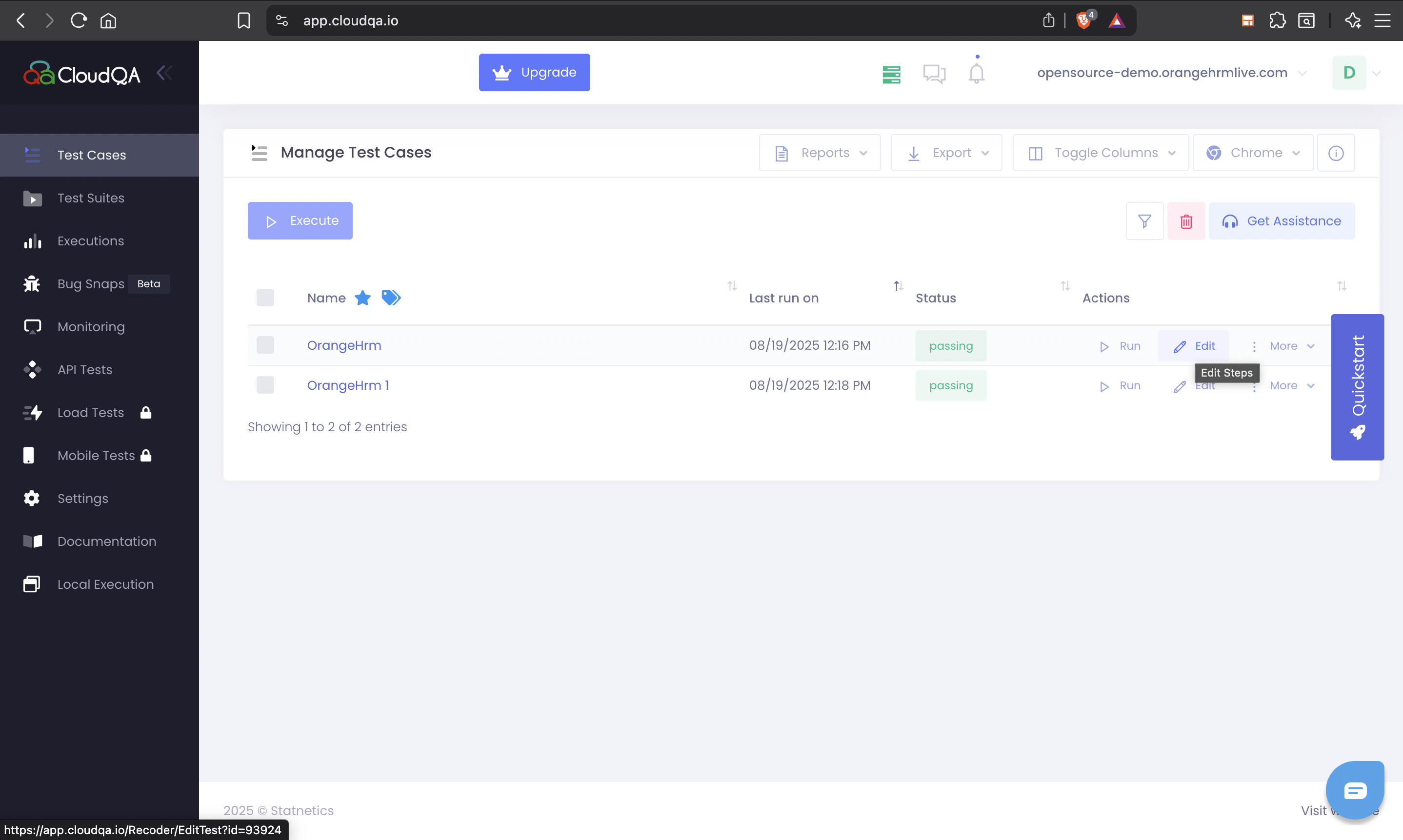
In CloudQA, open Test Cases.
-
Select Edit on the test case.
-
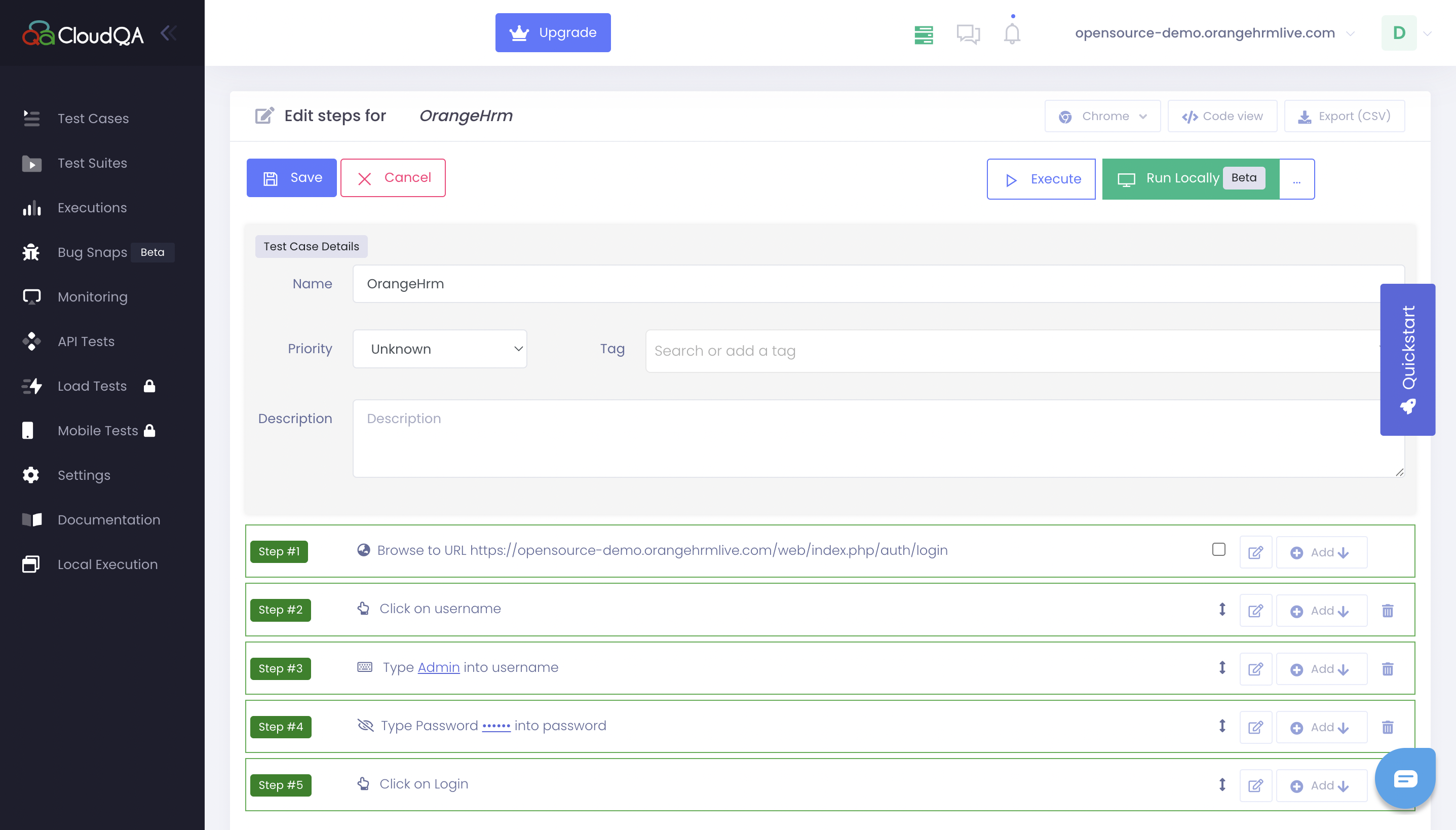
Select Run Locally.
-
The test runs in a new Chrome window, incognito or regular depending on your extension options.
Running locally is a quick way to check a change before you run the full test in the cloud.
- Give the extension all the permissions it asks for in Chrome.
- Don’t start more than one local run in the same browser window at a time.
- Save the test case after you edit it, so the next run uses your changes.
Related
Section titled “Related”- Run with Playwright for cloud runs. The Playwright setting doesn’t affect local runs.