

Travis CI
Run CloudQA test cases inside Travis CI builds. The example triggers a suite with default settings from a shell script after the build. See CI/CD integrations for the variables and what you need first.
Basic configuration
Section titled “Basic configuration”Add this to .travis.yml. Store CLOUDQA_API_KEY as an encrypted variable in your Travis settings where possible.
env:  - CLOUDQA_API_KEY="<API Key>"  - CLOUDQA_SUITE_ID="<Test Suite ID>"
language: bash
before_script:  - sudo apt-get update && sudo apt-get install -y jq  - curl -O https://doc.cloudqa.io/files/cloudqa-bash.sh
script:  - bash cloudqa-bash.sh
All options
Section titled “All options”Add variables to choose the browser, set a build tag, pass suite variables and control parallel execution.
env:  - CLOUDQA_API_KEY="<API Key>"  - CLOUDQA_SUITE_ID="<Test Suite ID>"  - CLOUDQA_BASE_URL="https://example.com"  - CLOUDQA_BROWSER=Chrome  - CLOUDQA_BUILD_TAG="1.0"  - CLOUDQA_SEQUENTIAL_EXECUTION="false"  - CLOUDQA_VARIABLES="var1=val1,var2=val2"
language: bash
before_script:  - sudo apt-get update && sudo apt-get install -y jq  - curl -O https://doc.cloudqa.io/files/cloudqa-bash.sh
script:  - bash cloudqa-bash.sh
Check the status
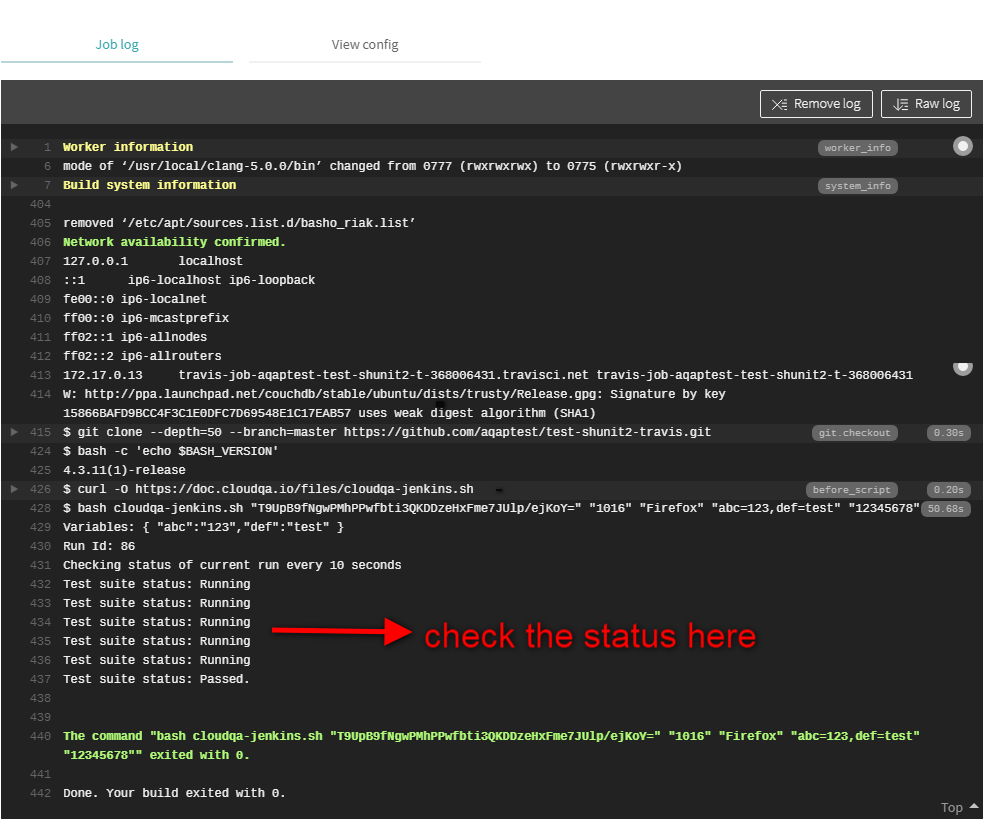
Section titled “Check the status”The job log shows the suite’s status, refreshed every 10 seconds.
Add a status badge
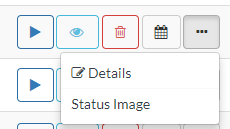
Section titled “Add a status badge”- Get the status image URL. Open Test Suites, select the more-options button in the Actions column and choose Status Image. The URL appears in a green message box.
- Get the test suite ID. In the same menu, choose Details.
Add the badge to your README:
[](https://app.cloudqa.io/Recoder/TestSuitesSummary/<test suite ID>)