
Check email in a test
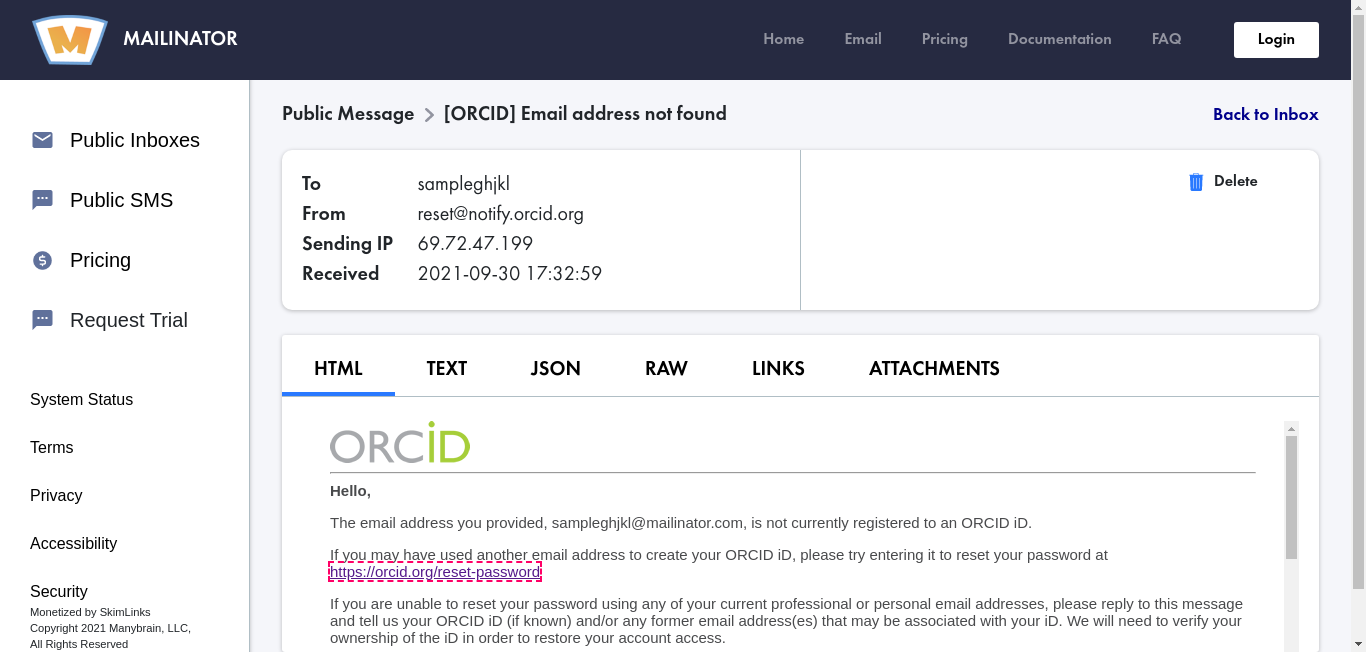
Many flows send an email that the test needs to read, such as a confirmation or verification message. A disposable public inbox service makes this possible. Mailinator, Guerrilla Mail and InboxBear all let you create random, unique addresses.
Set up the test
Section titled “Set up the test”-
Create a unique address. Choose a string in the Mailinator web interface. This is a one-time setup, and you reuse the address in later runs.
-
Record the flow that sends the email, using the new address.
-
Open the inbox in a new tab. In this URL, replace
testwith your address string:https://www.mailinator.com/v4/public/inboxes.jsp?to=test -
Resume the recorder. CloudQA pauses when you switch to a new tab, so select Resume.
-
Check the email. Open the message, validate its content or select the link in it, then save the test case.
-
Add a Goto URL step. Open Edit steps for the saved test and add a Goto URL step with the inbox URL, so the test opens the inbox on every run.
-
Optional: select the link in the email. If the message body is inside an HTML iframe, delete the recorded click, add a click step, and enter the element’s CSS path from the Elements pane. For an iframe, the selector looks like this:
iframe~~TagName[attributename^='partial attribute value'] -
Save and run the test.