

Add steps to an existing test
You don’t have to re-record a whole test to extend it. Record the new steps, then add them to an existing test at the position you choose.
Record the new steps
Section titled “Record the new steps”- Open Chrome and make sure the CloudQA extension is installed and active.
- Go to the web application you want to test.
- Select the extension icon, then select Record automated test.
- Perform the actions you need, such as clicking buttons, filling in forms or moving between pages. Each action becomes a step.
- Select the extension icon again, then select Pause.
Save them into an existing test
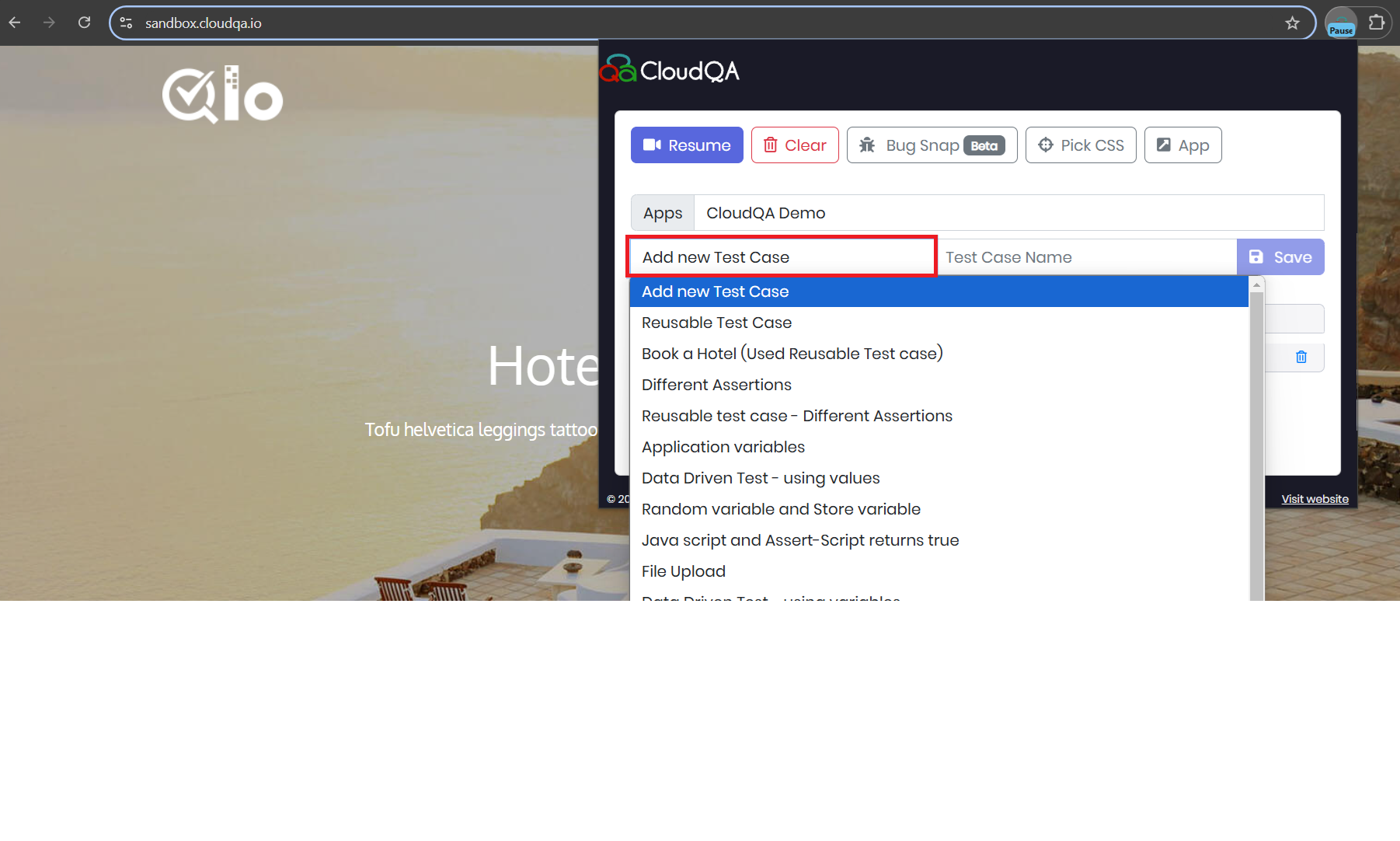
Section titled “Save them into an existing test”When recording stops, the Save Test Case window appears.
- Select Add a new test case to load your application’s existing tests, then pick the test you want to extend.
- Choose where the steps go:
- Top: at the beginning of the test.
- Bottom: at the end of the test.
- Add Step Number: after the step number you enter.
- Select Save.
Check the result
Section titled “Check the result”- Select Edit Test Case in the extension, or open the test from your CloudQA dashboard.
- Confirm the new steps are in the right place.
- Run the test to make sure it works as expected.